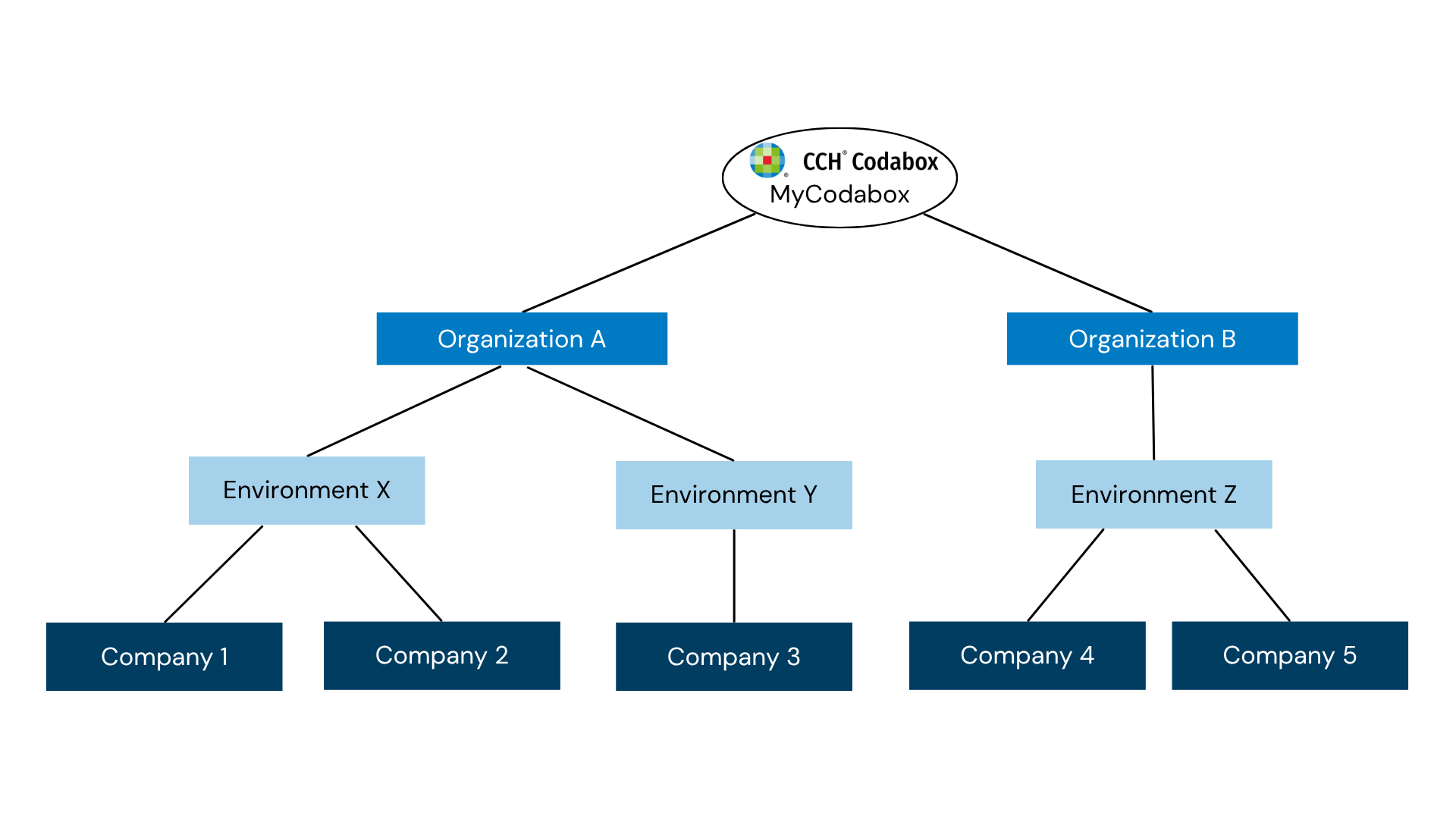
Do you manage multiple companies in MyCodabox? Depending on your situation, those companies in MyCodabox are housed under:
- one or more 'organizations' (Codabox sends separate invoices),
and/or - one or more 'environments' (Codabox delivers the files in different accounting softwares).
For example:
You can find more information about the structure of MyCodabox via this link.
Do you want to transfer a company from one environment to another or from one organization to another? Or do you want to take a company that was managed by an accounting firm and transfer it under your management in MyCodabox?
You can request this directly in MyCodabox, while also requesting the resending of CODA for this company, so that you receive the files in the correct accounting package.
➟ Please check first where the company is currently housed and use the instructions below that apply to your situation.
From organization A to organization B |
Is the company you want to transfer currently housed in MyCodabox under one of your other organizations? Then you can transfer it from organization A to organization B (for example, because you want the Codabox invoicing for that company to go through organization B from now on).
Is the company you want to transfer currently managed in MyCodabox by another entity (for example, an accounting firm)? Even then you can transfer it and place it under your management.
★ In both cases, the representative of the company has to sign the necessary mandate(s) again and the one-time mandate fee will be charged again on your Codabox invoice.
Here's how to do it
- Go to the MyCodabox-environment that the company needs to be transferred to (for example organization B, environment Z, in the diagram above).
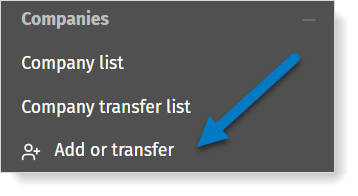
- Go to Companies > + Add or transfer.
- Fill in the company details.
- Click Save company.
The system detects that this company is already on file with Codabox and offers you the possibility of transferring the company.
- On the next screen, you can immediately transfer certain services (if you wish to):
- CODA: select the related bank account(s) that you wish to transfer and/or add new bank accounts.
If necessary, you can request the delivery of past CODAs that were created by the bank. In the field 'Deliver past CODAs', you'll see the available period*.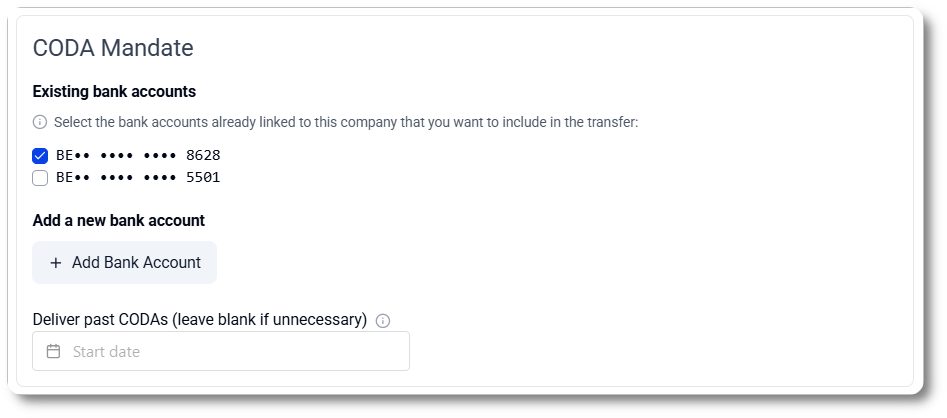
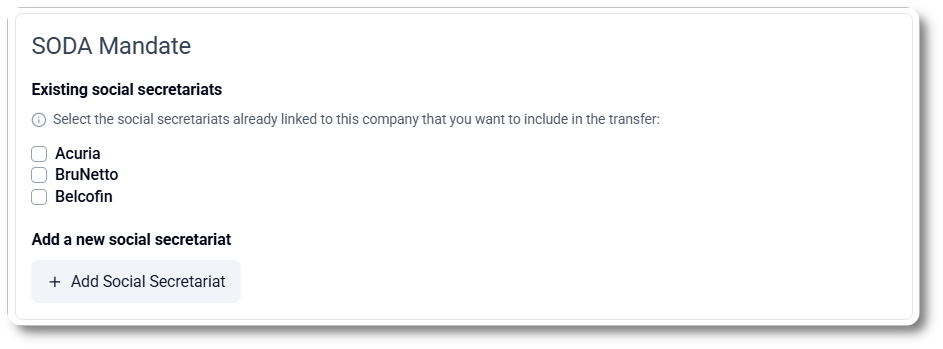
- SODA: select the related social secretariat(s) that you wish to transfer and/or add new social secretariats.
- CARO: you can only order this service after the transfer.
- CODA: select the related bank account(s) that you wish to transfer and/or add new bank accounts.
- Click Continue.
- Codabox checks the transfer details. Within a few days, Codabox transfers the company to your office and you will be able to see it in your 'Company list' in the environment to which you transferred the company (for example organization B, environment Z, in the diagram above).
In the meantime, you can track the status in that environment via Companies > Company transfer list. Open the Incoming transfer tab and check the 'Transfer State' column. You can also filter the list to see the transfers that are still 'open' or 'closed' (done or cancelled). - The mandates need to be signed again by the company representative: go to your 'Company list', open the company and follow the instructions for signing the mandates.
- Codabox then processes the signed mandate(s).
- You will receive the files for this company.
You can now request CARO.
* In certain cases, you can now also request CODA files from the period prior to the activation of the previous mandate.
From environment X to environment Y |
You work with different accounting packages (within 1 organization).
One of the companies is housed in MyCodabox under environment X and you want to transfer it to environment Y (for example, because you are changing accounting software for this company)?
The principle is straightforward: When transferring the company to the new environment, CODA delivery remains active, and NO new mandate needs to be signed!
★ In order to have a smooth transfer and deliver the CODAs on time to the new environment, make sure to submit the transfer request once you have already started managing this company in the new accounting package.
Here's how to do it
- Use the search box in the white menu bar at the top (e.g. type in the company code, enterprise name or enterprise number).
- Click the Company code.
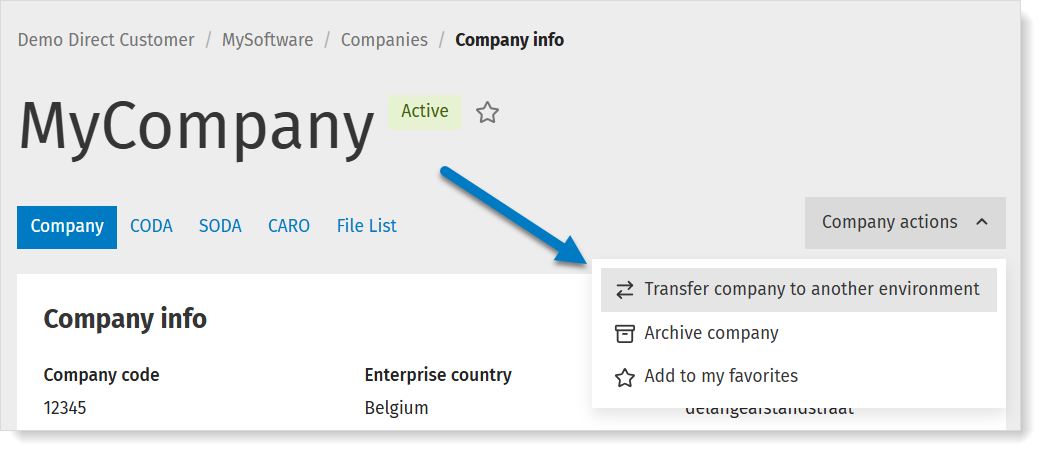
The 'Company' tab opens. - Click on Company actions at the top right and choose Transfer company to another environment.
- A pop-up appears. Select the environment and fill in the other fields as per your needs for this company.
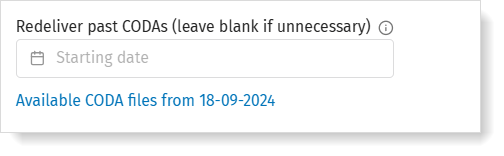
Would you like to have past CODA files redelivered to the accounting software you are transferring this company to? In the 'Redeliver past CODAs' field, select the date from when you want this to happen.
We can deliver CODA files retroactively from the date the CODA mandate was activated (with a limit of 2 years in the past).
Click Save changes.
You will now find the company in the environment you transferred it to (for example, organization A, environment Y, in the diagram above).
Had you already activated CARO and/or SODA for this company? These services are automatically transferred. You will now receive the files in the new environment.