You can easily transfer a company that is already on file with Codabox, to your office. At the same time, you can immediately request CODA and SODA. You can also obtain CODA from the past. CARO and/or VOILA can be requested after the transfer.
Transfer an existing company to your office in 4 steps
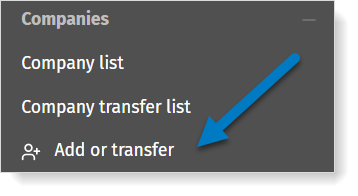
- In MyCodabox, go to Companies > + Add or transfer.
- Fill in the company details.
- Click Save company.
The system detects that this company is already on file with Codabox and offers you the possibility of transferring the company to your office. - On the next screen, you can immediately transfer certain services (if you wish to):
- CODA: select the related bank account(s) that you wish to transfer and/or add new bank accounts.
If necessary, you can request the delivery of past CODAs that were created by the bank. In the field 'Deliver past CODAs', you'll see the available period*.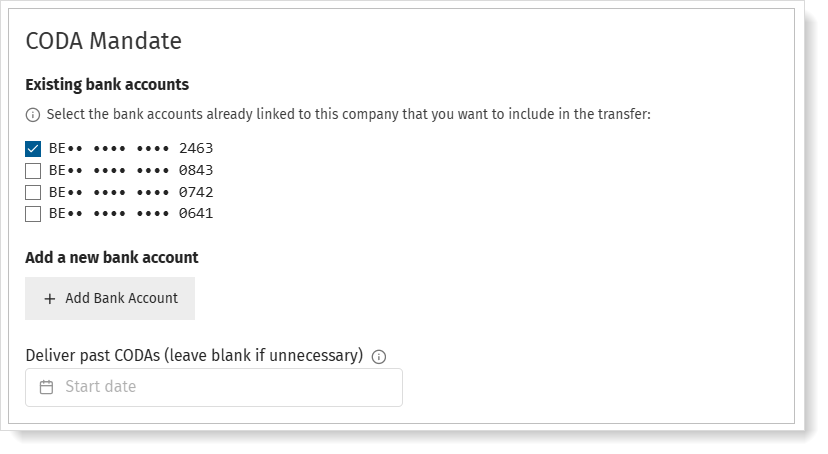
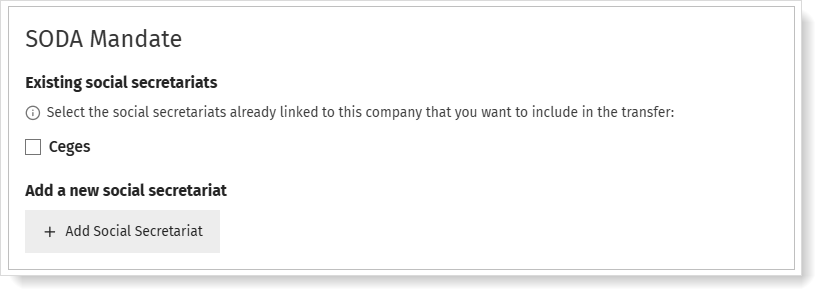
- SODA: select the related social secretariat(s) that you wish to transfer and/or add new social secretariats.
- CARO: you can only request this service after the transfer.
- VOILA/VOICI: you can only request this service after the transfer.
- CODA: select the related bank account(s) that you wish to transfer and/or add new bank accounts.
- Click Continue.
What happens next:
- Codabox checks the transfer details. Within a few days, Codabox transfers the company to your office and you will be able to see it in your 'Company list' in the environment to which you transferred the company.
- Codabox sends the CODA mandate(s) for this company to your client for signature.
- Codabox handles the mandate(s) signed by your client.
- Your office receives CODA (and SODA) for this company. You can now request additional services.
* In certain cases, you can now also request CODA files from the period prior to the activation of the mandate with the previous accountant.
This procedure is also available in a short video
On this page you can watch a short video tutorial 'How to request a client transfer' (note: the wordings used on the screens have since changed).
Be sure to check out our other video tutorials, which walk you step-by-step through MyCodabox with concrete examples.
Questions & troubleshooting |
Follow the status of your transfers?
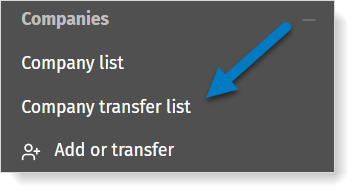
You can follow your transfers via MyCodabox > Companies > Company transfer list
 You can filter on transfers that are still 'open' or 'closed' (done or cancelled).
The different statuses of your transfers are explained in detail in this article
What about the services that were activated for this company before the transfer to your office?
During the transfer, you decide which service(s) to activate:
Active service BEFORE the Transfer | STATUS if service requested by the new Accountant DURING the transfer | STATUS if service NOT requested by the new Accountant |
| CODA / SODA | Transferred (awaiting signature) ★ The legal representative of the company needs to sign the mandate (again) | Cancelled |
| CARO / VOILA / VOICI | Always cancelled | |
Is the transfer taking more than a few days?
It is possible that for this company there is an account (or multiple accounts) that was recently archived (by the previous accounting office) with the request to stop creation of CODA by the bank. Activating CODA again for this account is only possible from a certain date, which is determined by the bank (ING: 10th day / Belfius: 13th day / all other banks: 20th day of the month). We will finalize the company transfer after that date.