On this page you will find all the information to manage your own user data and password.
If you are Admin, you can also invite and manage other MyCodabox users within your organization.
Manage your personal MyCodabox user data |
You are a new Codabox client and your office doesn't have access yet to MyCodabox?
Codabox will send an invitation email, allowing the first MyCodabox user to get access for your accounting office.
Click on the link in the email and follow the procedure: you will be asked to enter a password (your email address is already registered and read-only).
Change or reset your password
Have you forgotten your MyCodabox password and do you need to reset it, or would you simply like to change it?
Change your password
- Go to MyCodabox.
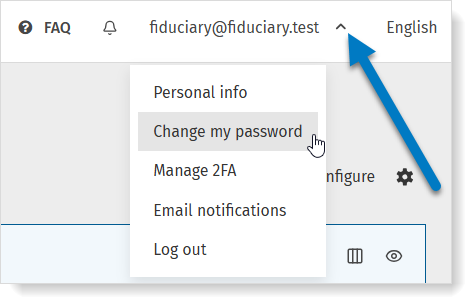
- Click on your username (your email address) and select Change my password.
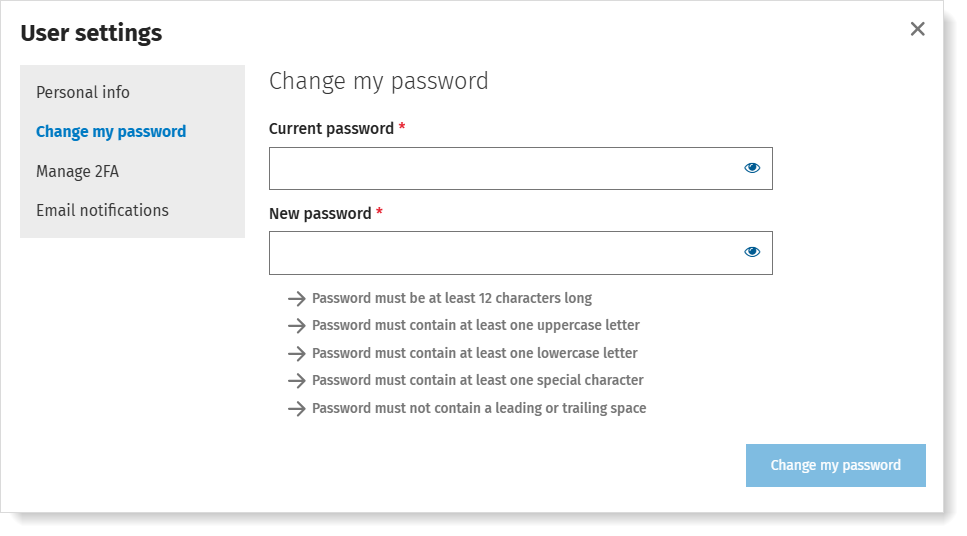
- Enter your current password, choose your new password and confirm by clicking on Change my password.
Forgotten password?
Reset your password:
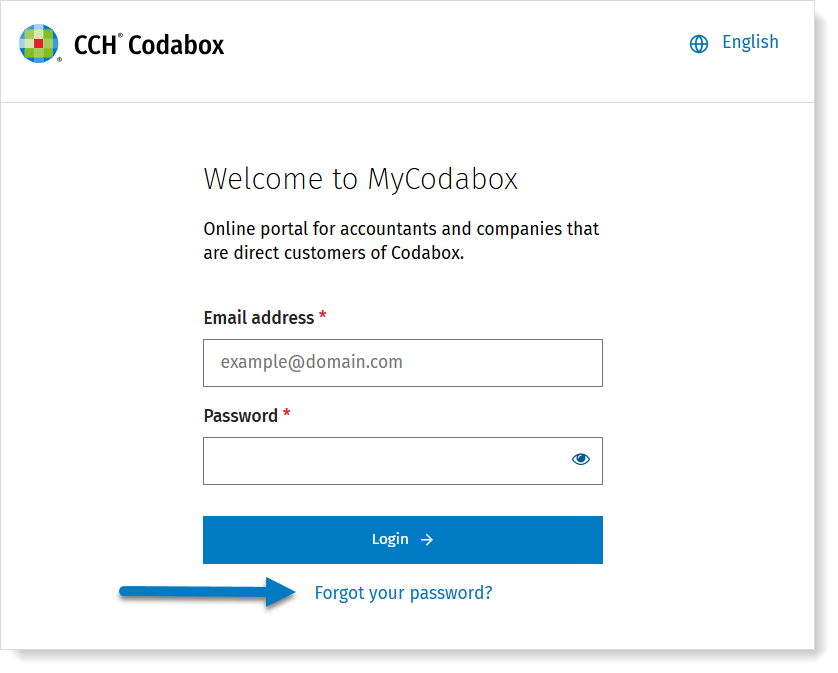
- Go to the MyCodabox login page and click Forgot your password?
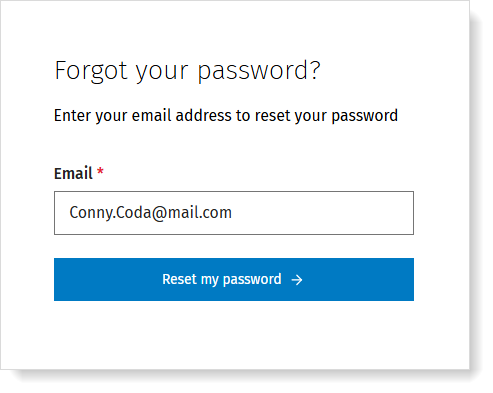
- Enter your email address and click Reset my password.
- You will then receive an email with a reset button valid for 1 hour.
Change your own user data (name/language)
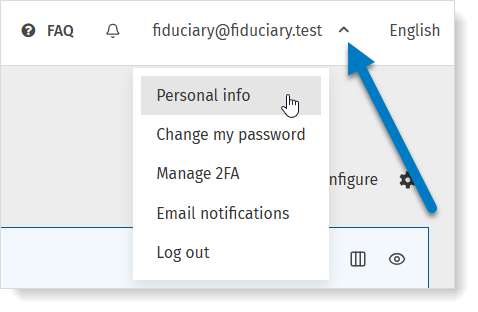
- In MyCodabox, click on your user name (your email address) and select Personal info.
- Edit the fields and click Save changes.
✘Your name cannot contain numbers or symbols.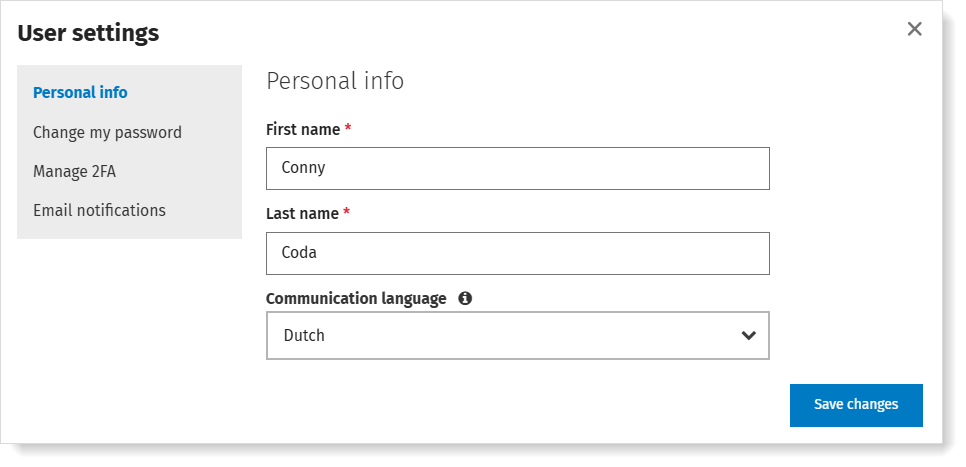
Extra security for your account?
In MyCodabox, you can enable two-factor authentication: that way, your account will be extra secure!
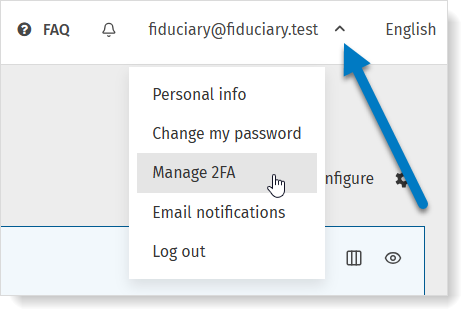
Email notifications: set your preferences
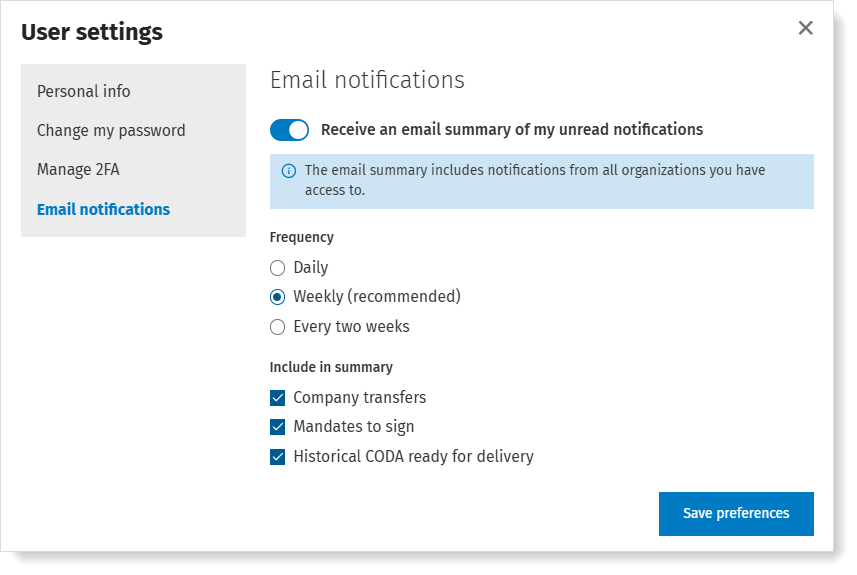
By default, you'll receive a weekly summary (if there are new, unread notifications) from the address no-reply@notifications.codabox.com.
You can set your own preferences:
- Click the link at the bottom of the email or click your username (your email address) at the top right in MyCodabox and select Email notifications.
- Set your preferences:
- Enable/disable email summary
- Frequency
- Type of notifications
★ Do you wish to change the language of these emails? You can set your language preferences via the menu Personal info.
Manage and invite other MyCodabox users (Admin) |
Managing other MyCodabox users is only possible if you have Admin access (your accounting office decides who is Admin or not). You will then see the menu Administration in the menu bar at the top: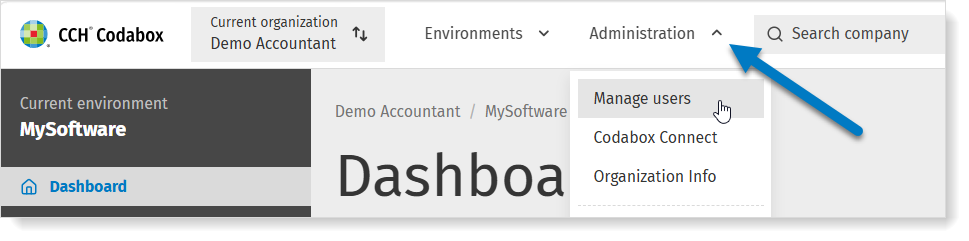
The difference between the rights of Admin and non-Admin users
 | Use the toggle in the column 'Admin' to grant or cancel Admin rights per user. |
| Rights | Admin | Non-Admin |
| Add and manage Companies and services | ✓ | ✓ |
| Mark favorite companies with a personal overview on the Dashboard | ✓ | ✓ |
| Access to the left menu in MyCodabox | ✓ | ✓ |
| Access to the menu ‘Administration’ | ✓ | ⮾ |
| Add and manage MyCodabox users | ✓ | ⮾ |
| Determine which users have access to which environments within the organization | ✓ | ⮾ |
| Edit organization info | ✓ | ⮾ |
| Add an environment for additional software(s) | ✓ | ⮾ |
| Add an environment en set up delivery for ‘private files’ | ✓ | ⮾ |
Give access to a colleague
- Go to your Organization > MyCodabox > Administration > Manage users.
(the Administration menu is visible only to Admins)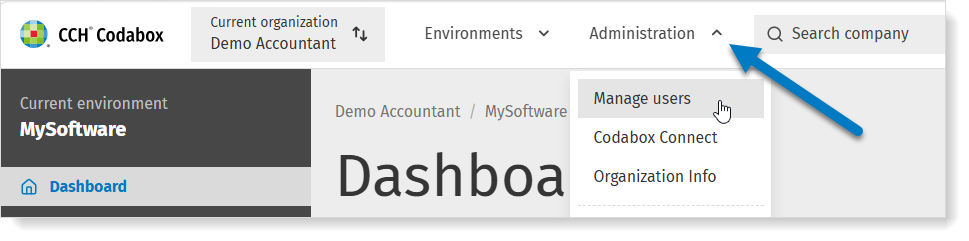
- In the Manage users window, click Invite user.

- In the invitation pop-up, enter your colleague's (professional) email address.
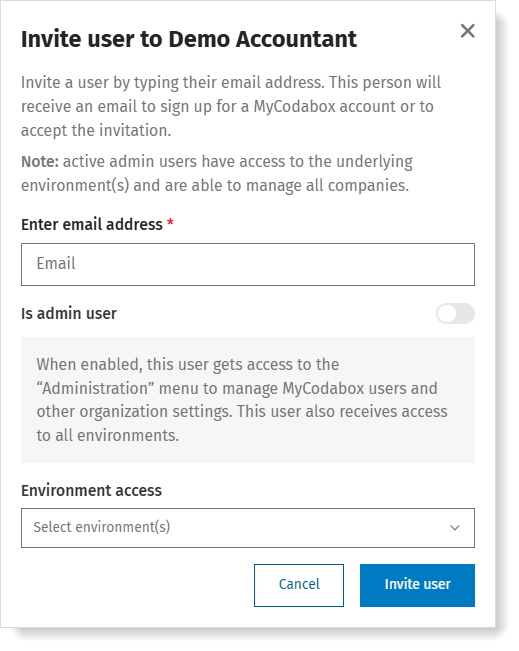
- Toggle the Admin-switch if you want to grant admin rights. You can change this as needed at any time.
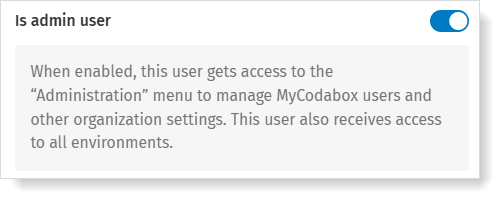
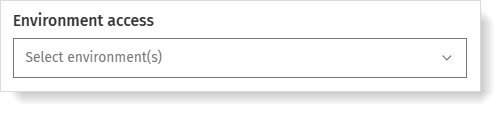
- If you don't toggle the Admin-switch, you can determine to which environment(s) this user should have access. You can change this as needed at any time.
- Confirm with the button Invite user.
Codabox sends an email with the invitation.
Manage MyCodabox users
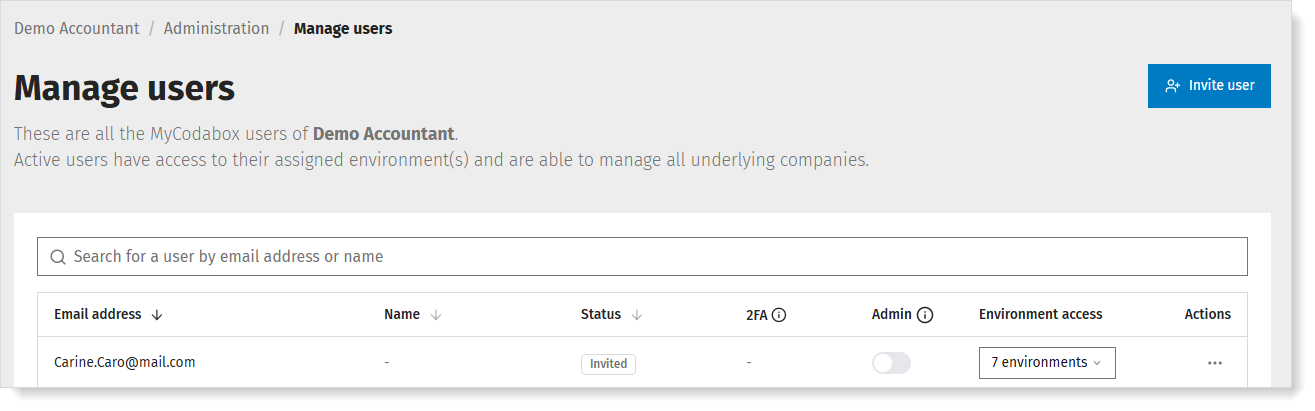
Per user you can view the status and manage certain options:
- change the type of access (Admin or non-Admin): more information about the difference in access rights can be found above
- grant or revoke access to certain environments: the user will only see the environments you select
- remove access (delete user)
- if the user has not yet accepted the invitation: resend the invitation (the invitation expires after 14 days) or revoke the invitation
Grant/limit access to an environment
- Go to Administration > Manage users via the white menu bar at the top.
Here you will find an overview of all MyCodabox users within the organization.
In the ‘Access to environments’ column, determine for each user which environments this user is allowed to see.

Delete a user
 | Find the user in the list. Click the 3 dots below 'Actions' in the rightmost column next to this user and choose Remove access. This user will no longer have access to the organization and linked environments you’re managing in MyCodabox. |
 | Click the 3 dots below 'Actions' in the rightmost column next to your name and choose Leave organization. Note: you will no longer have access to the details in MyCodabox. You cannot undo this action. You can however ask another Admin user to invite you again. |
Manage MyCodabox users (Admin): Troubleshooting |
I invited my colleague but the invitation email got lost. How can I send a new one?
Can I change the name of a user?
Can I change the email address of a user?
How can I access another accounting office's company list (e.g. merger)?
Example:
You're about to merge with another office, but for the time being you'll continue to exist under separate company registration numbers.
Do you already have a MyCodabox account for your office (e.g. jan.jansen@office.be)? The other office can give you access to their organization's MyCodabox.
How?
The other office sends an invitation to jan.jansen@office.be from their MyCodabox, so that you can also access this organization in MyCodabox.
Do you have any questions? We'll be happy to answer them via helpdesk@codabox.com