Request CARO for your client |
CARO is possible for companies that already have an active CODA mandate with a bank that supports CARO.
Once you submit the request, Codabox automatically sends an email to the cardholder, who must give one-time permission to share the statements. Inform your client in advance: this will reassure them and ensure that everything runs smoothly.
★ In MyCodabox, we automatically show you the companies that regularly make payments for a credit card with a CARO-supporting bank. We're able to obtain this information by analyzing the transactions in the CODA.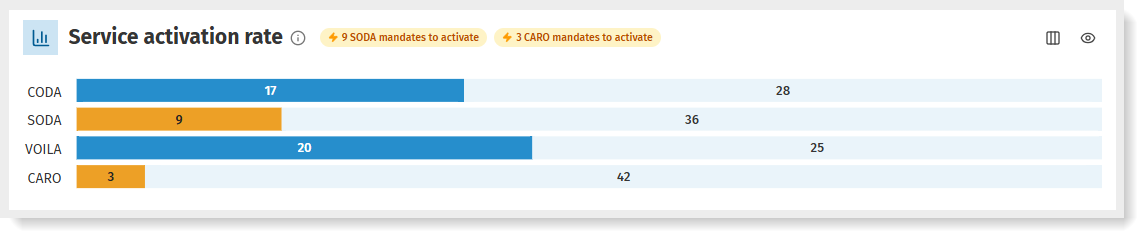
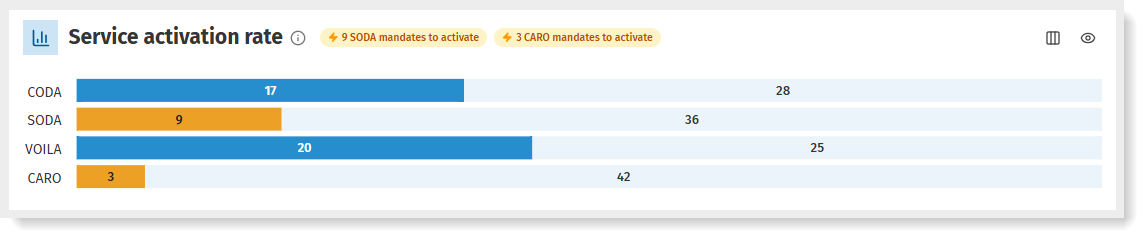
Click the orange part of the bar or the CARO highlight at the top.
A clear overview shows you for each company the IBAN and the bank in question.
You can immediately click on the company to request CARO.
Do you prefer to download the CARO potential so as to share it with a colleague? Read all about it here.
Inform your clients in advance (+template)
 Use our handy template email (
Request CARO
You can request CARO for companies that already have an active CODA service with a bank that supports CARO.
- Open the company's CARO tab.
★ Tip: on the Dashboard you can click through via the Service activation rate to immediately see for which companies (+ bank) you can request CARO.
★ The CARO tab also shows you, at the top right corner, how many CARO mandates you can still request. Click to see the overview. - Click New CARO request at the top right.
- First select the supported CARO bank.
Depending on your selection, you will need to complete a few fields.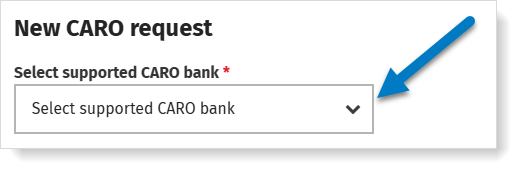
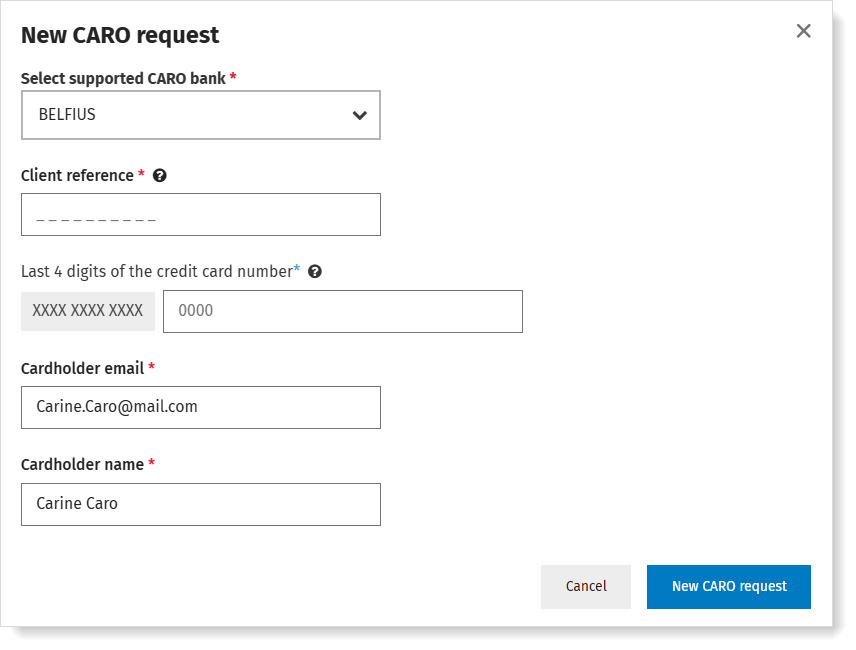
- Enter the Client Reference*, and check the cardholder's details (the cardholder will receive an email).
- For a number of banks, you'll also need to enter the last 4 digits of the card number.
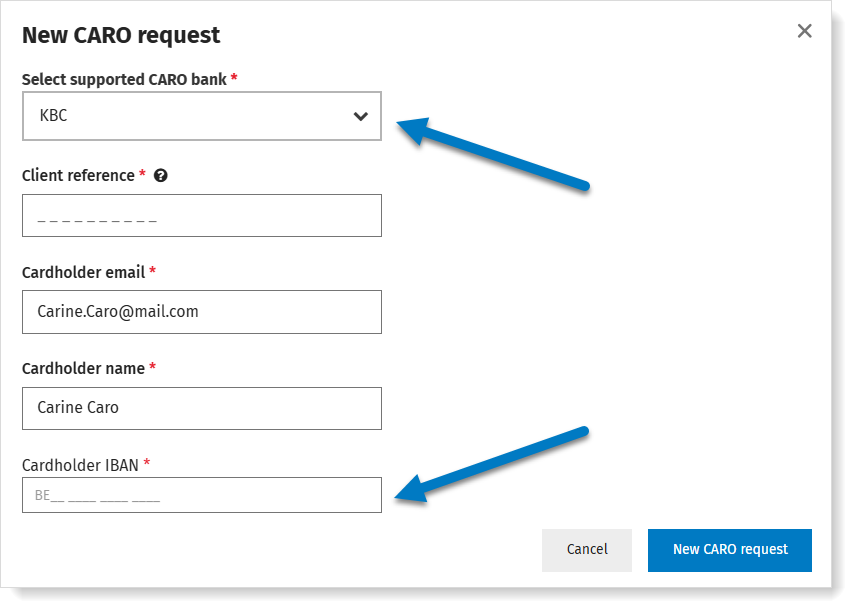
- For a KBC/CBC client, you'll also need to enter the IBAN that is linked to the credit card.
- For a number of banks, you'll also need to enter the last 4 digits of the card number.
- Click the button New CARO request.
The CARO request is confirmed, the status is now 'Invitation Sent'.
CARO has been requested: the cardholder needs to confirm!
- An invitation email containing:
- For KBC/CBC: Instructions to activate CARO in the respective KBC/CBC apps
- For other banks: An activation link to activate the CARO service
- Thereafter up to 3 weekly reminder emails with the same activation link.
If necessary, you can also copy the activation link from MyCodabox to contact your client directly. More info.
Troubleshooting for requesting CARO |
Error: No active CODA mandate
 This message appears when you have selected a company without active CODA with a bank that supports CARO.
➞ CARO is currently possible for: Argenta - Bank Van Breda - Belfius - BNP Paribas Fortis - Crelan (AXA) - Fintro (BNP Paribas Group) - KBC/CBC
★ Tip: on the Dashboard you can click through via the Service activation rate to immediately see for which companies (+ bank) you can request CARO.
The CARO tab also shows you, at the top right corner, how many CARO mandates you can still request. Click to see the overview.
Error: The FORMAT of the client reference is not valid
Use the correct client reference: this can be checked on the credit card statement of the credit card in question.
The client reference consists of 10 digits, starting with 6 or 7. Example: 6123456789 or 7123456789.
Tips: You can also click the small icon i to get more information.
Error: The NUMBER of the client reference is incorrect
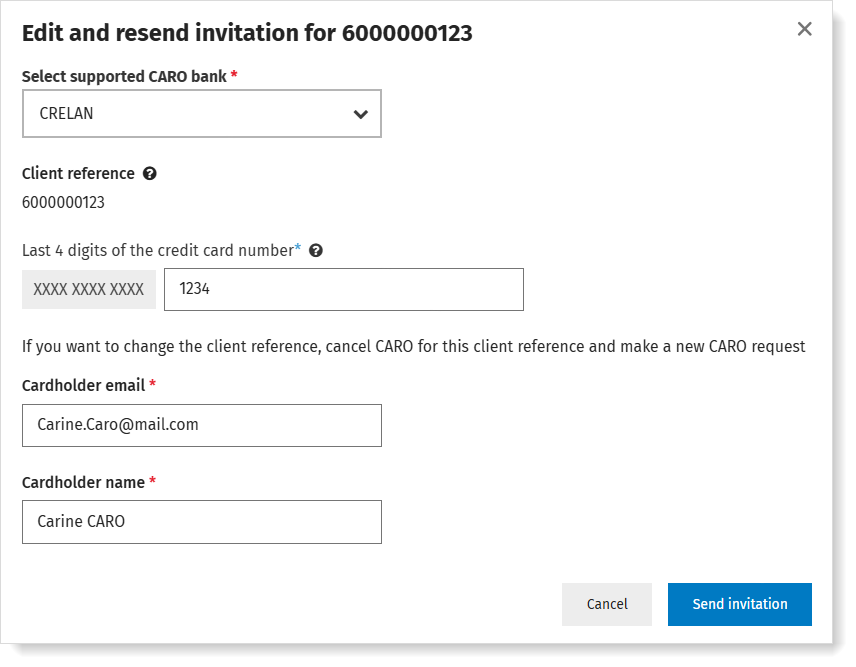
Invitation sent: Modify details of the card or cardholder
- Open the CARO tab of the company.
- Click actions in the rightmost column for the client reference in question and choose Edit & resend.
- Correct the data and click Send invitation.
Track the status of the request via MyCodabox |
Once the cardholder has given consent, the credit card statements will be available as of the following month.
➜ More info about delivery can be found here.
➜ Has the cardholder reported that the activation failed? Check our troubleshooting about the activation by the cardholder.
Is CARO already active? Track the request status
- Open the CARO tab of the company.
- View the State of your CARO requests: you will see, among other things, the date the state changed or when the invitation was sent.
➜ Move your cursor over the state for more info.
➜ Next to the bank's name, you'll see an info icon that indicates the day of the month on which this bank shares files.
➜ Once the cardholder has given consent, the credit card statements will be available starting from the following month.
Find more info about the status below.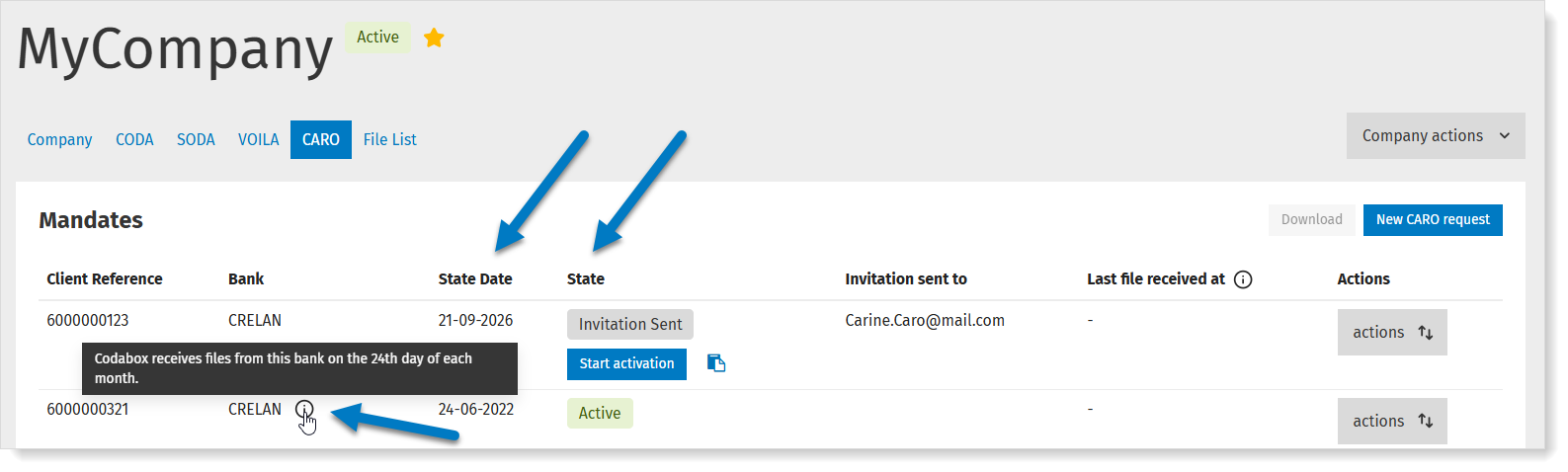
Filter companies by CARO status
In MyCodabox > Mandates & Services > CARO, you can apply a filter to display all eligible companies by state.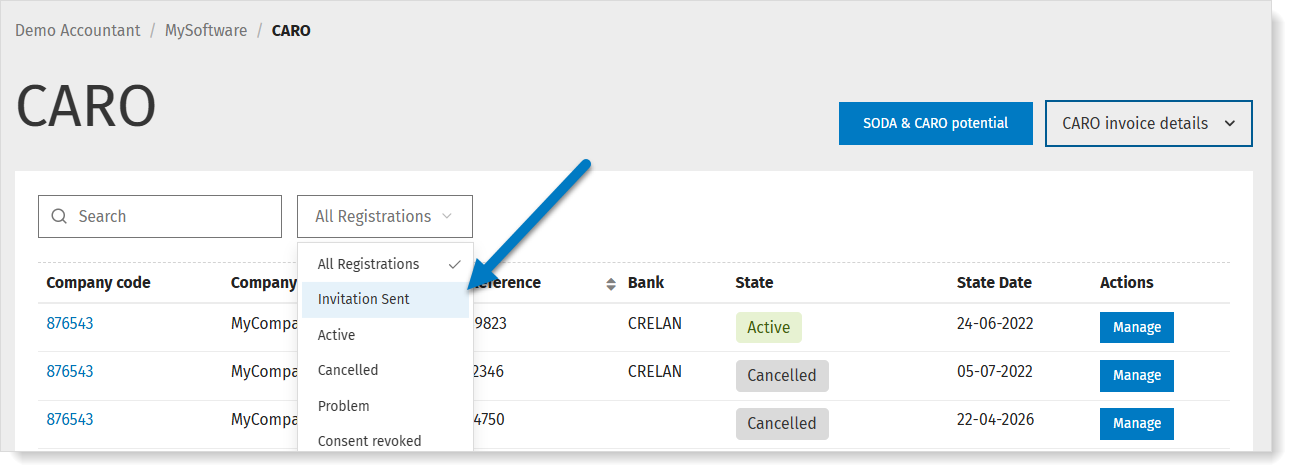
CARO status: meaning and follow-up
CARO status | Meaning |
| Not Requested | The CARO service has not (yet) been requested for this company. |
| Invitation sent | The cardholder has received an email inviting them to agree to share their credit card statements. If necessary, the cardholder will receive a reminder email every week thereafter (maximum 3x). Is the activation by the cardholder taking too long or has the cardholder reported that the activation failed? Check our troubleshooting. |
| Active | The service is active. In the overview, you can see when the service became active and when Codabox received the most recent document. |
| Cancelled | Codabox no longer receives credit card statements for this client reference. Was this CARO cancelled less than 6 months ago (for example, in the context of a company transfer)? Then you can reactivate this CARO yourself via the 'Reactivate CARO' button. This does not require renewed consent from the cardholder. |
| Problem | There are multiple potential reasons, for example:
|
| Consent revoked | The bank account linked to the credit card is a KBC/CBC account and the cardholder has revoked the CARO consent in their KBC/CBC banking app. Unless you take action, you will continue to be billed for these client references. The solution? Ask the cardholder to recreate the link to Codabox: you can send an email yourself or use the button Notify cardholder via MyCodabox, in the status column: the cardholder will then receive instructions to re-establish the link. 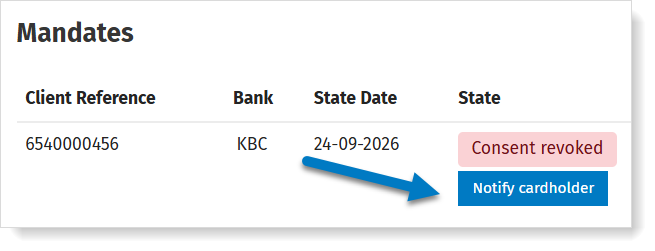 You can also cancel CARO for this client reference. You can also cancel CARO for this client reference. |